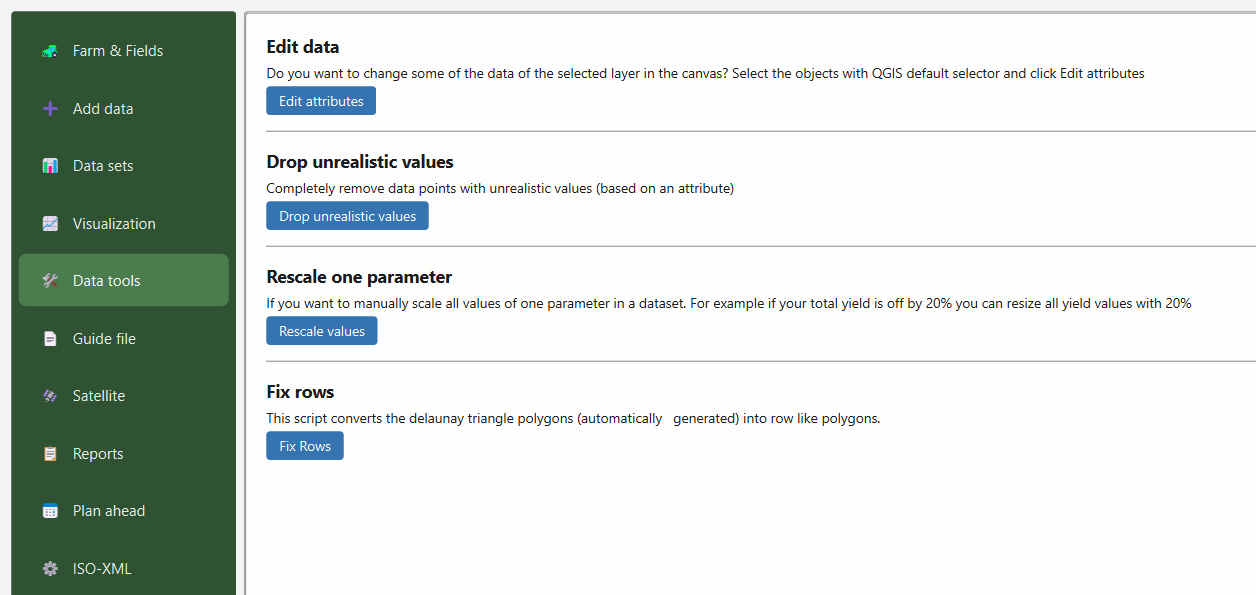
Within GeoDataFarm there two major places where you may edit your datasets. One place where you can make multiple types of changes is on the 🛠 Data tools tab (as illustrated to the left) and the other place is under the 📊 Data sets tab (which is described in Edit data 2).
Edit attributes
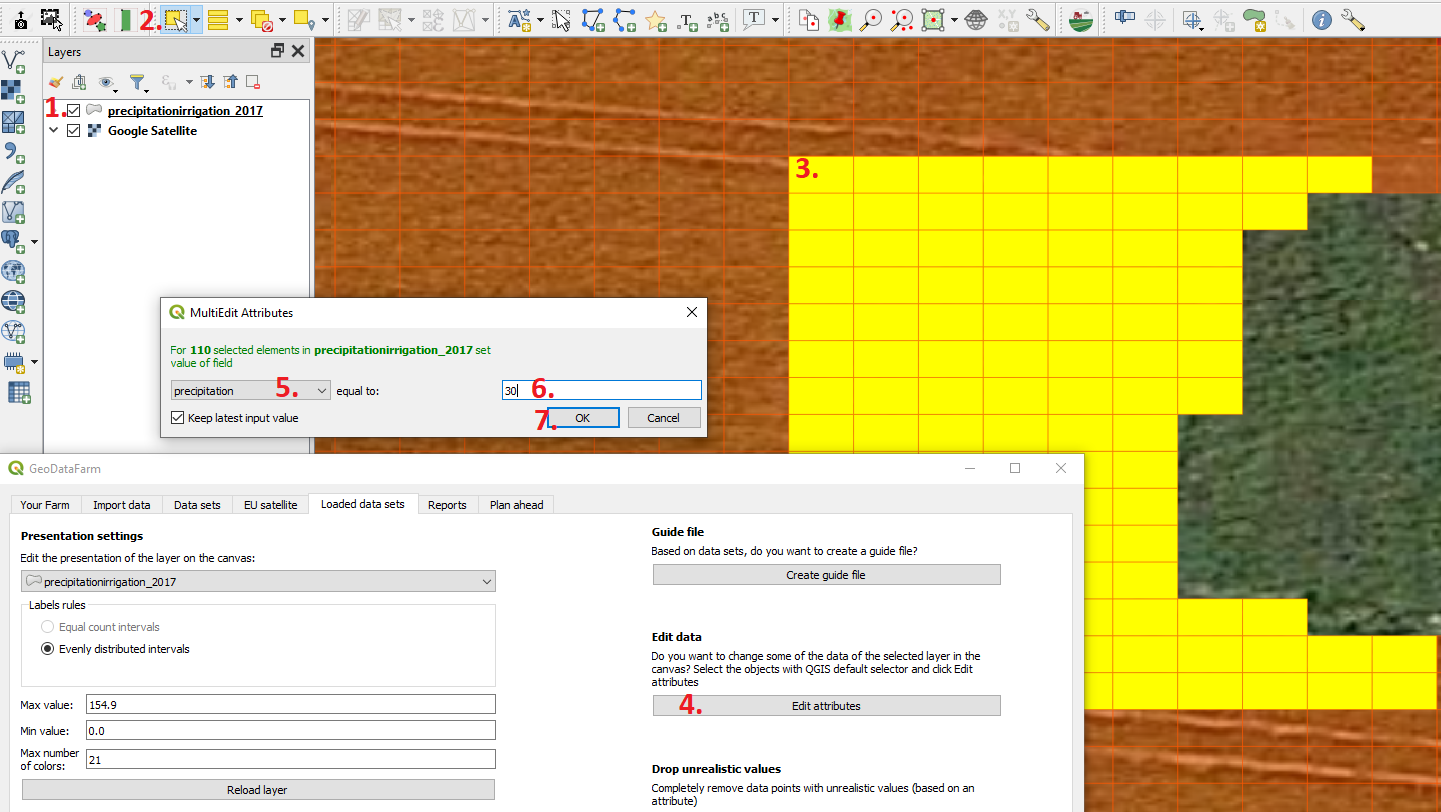
If you want to change multiple attributes of a layer that you have loaded you can do that with Edit Attributes.
Start with selecting the layer that you want to edit.
Change the QGIS tool to Select features.
Left click (and hold down) to select some features to edit (when you let go you will select features in a square), to add more areas to the selection hold Shift and to remove some areas hold down Ctrl.
When the areas you want to change values of are selected press on the Editattributes button in the GeoDataFarm window/Loaded data sets tab.
Select the attribute that you want to adjust the values of.
Set a new value.
Press OK.
Drop unrealistic values
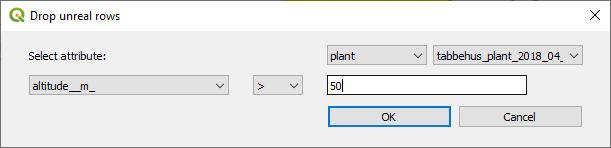
If you instead want to delete some areas that contains unreal values you can do that with Drop unrealistic values. In this window you select the type of data, name of the dataset, the attribute name, the operator (smaller/larger) and the value.
Rescale values
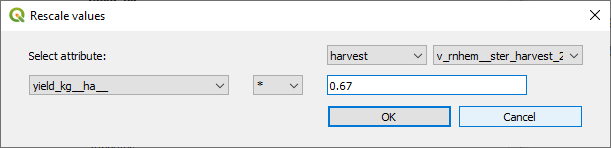
To rescale an attribute (or adjust all attributes with a factor), press on Rescale values select thetypeof data, name of thedataset, theattributename, theoperator(plus, minus, times with or divided with) and thevalue. Say that your yield actually was 50 000 kg/ha but the data that you have added to GeoDataFarm says that average yield was 75 000 kg/ha than you can multiply all values with 0.67.
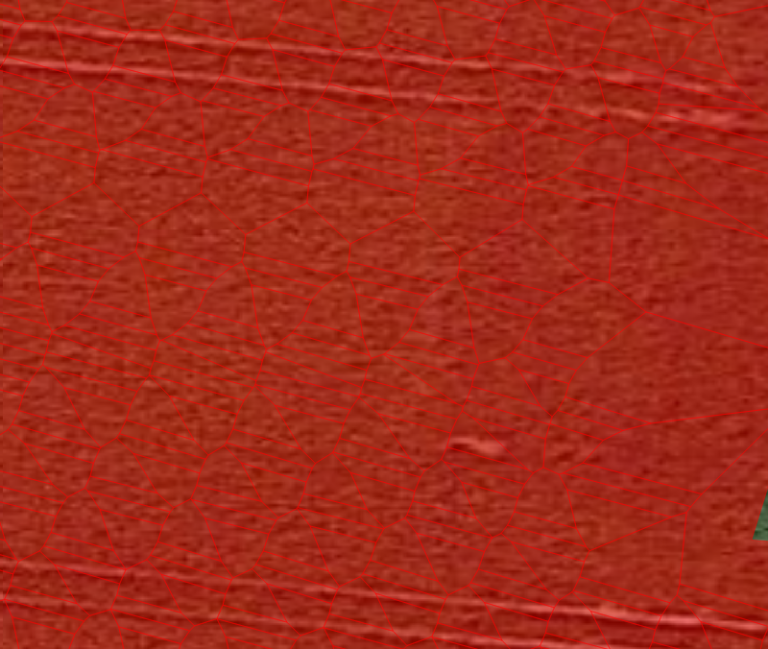
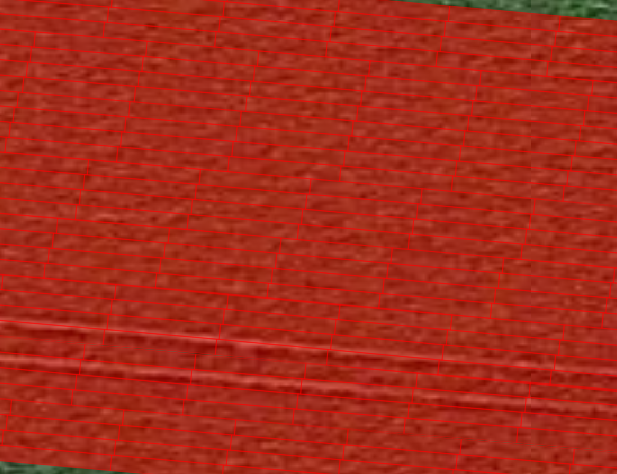
Fix Rows
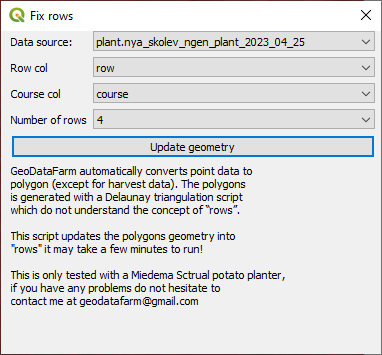
To make this change go press on Fix Rows. Select the data source, which attribute that contains the “row column”, the “course attribute” and how “many rows” that it machine contains.