GeoDataFarm now includes a powerful ISOXML Taskdata Generator that lets you create standard-compliant ISOXML files for use with precision agriculture equipment. This feature allows you to define task structures, manage farm metadata, and export ready-to-use TASKDATA.XML files.
Getting Started
1. Open QGIS and load the GeoDataFarm plugin
2. Navigate to the “Generate ISO XMLs” tab in the dock widget
Step 1: Create or Load a Recipe
A recipe defines what your ISOXML file will contain. You can create a new recipe or use an existing one.
Creating a New Recipe
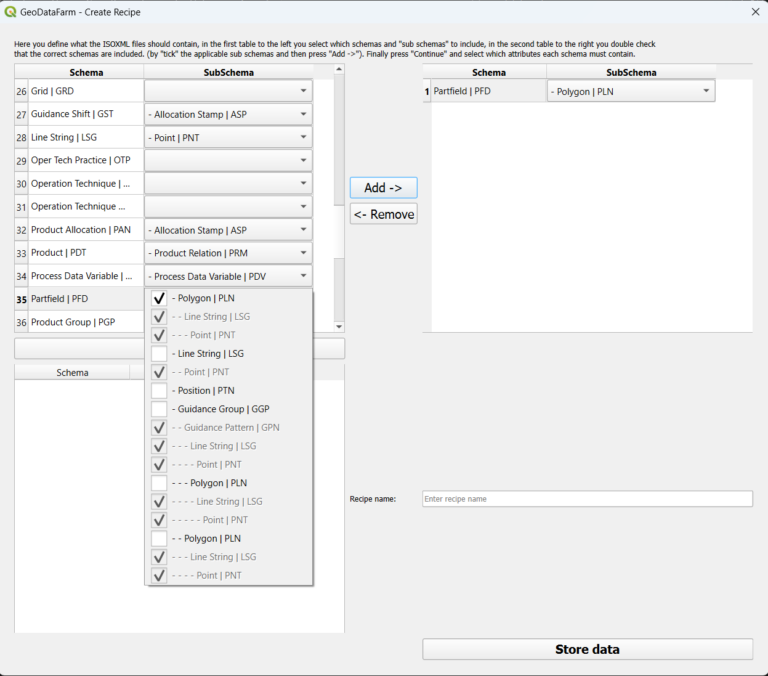
1. Click New Recipe to open the Recipe Creator dialog
2. In the left table, select which ISOXML schemas to include (e.g., Task, Farm, Device, Worker)
3. For each schema, check the required sub-schemas in the dropdown
4. Click Add -> to move selected schemas to the right table
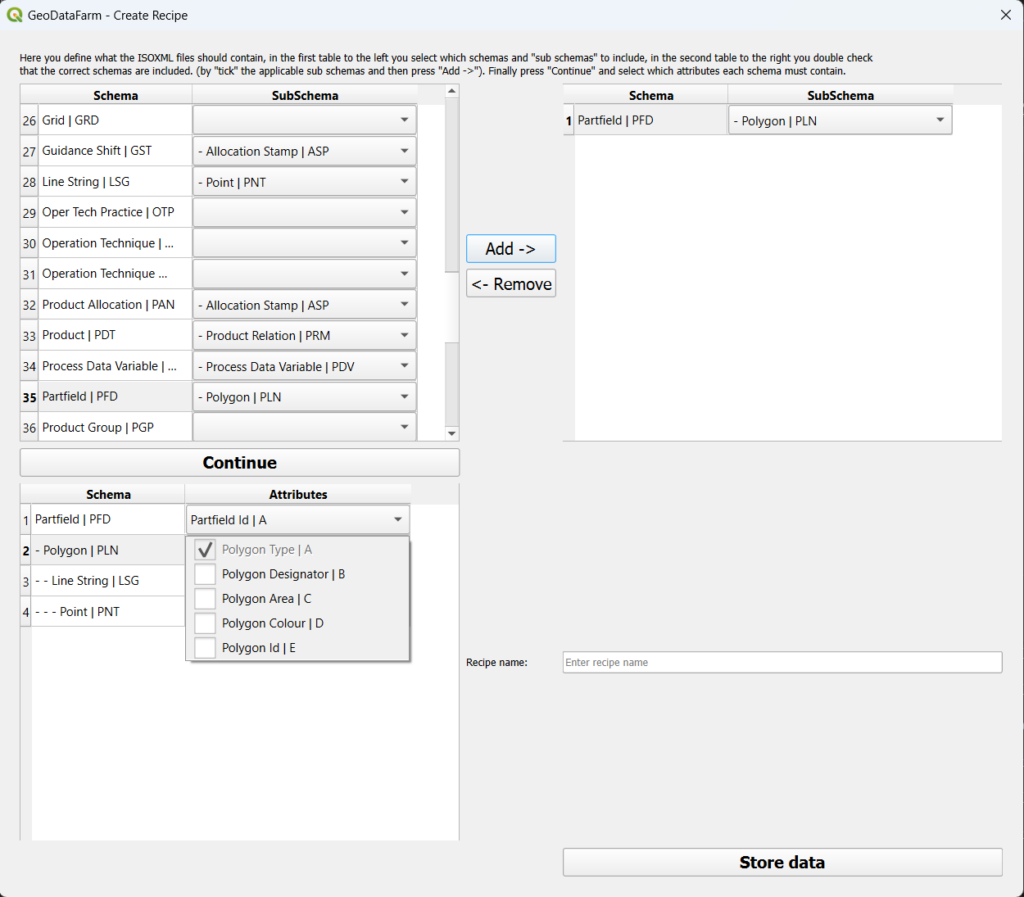
5. Click Continue to proceed to attribute selection
6. Check which attributes each schema should contain
7. Enter a recipe name and click Store data to save
Loading an Existing Recipe
You can also load a previously saved recipe directly from the Recipe tab:
1. Click Load Recipe and browse to your `.recipe` file
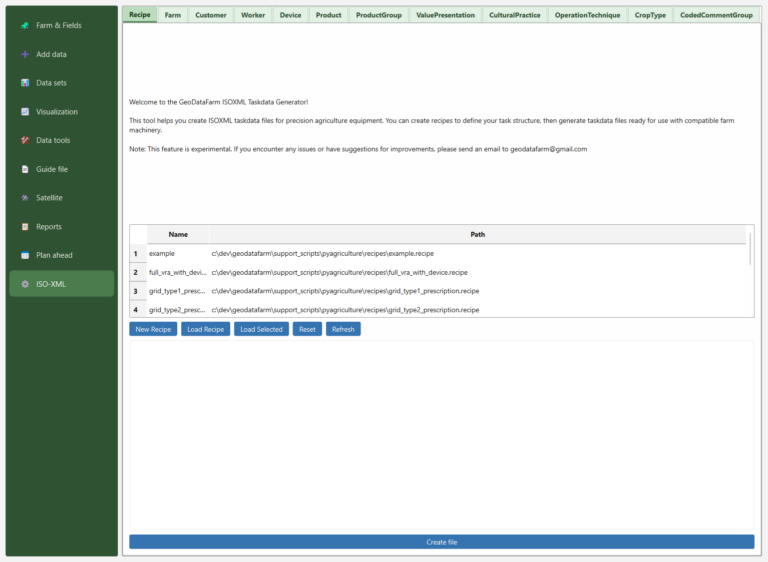
2. Or select a recipe from the table and click Load Selected
3. Click Refresh Recipes to update the list of available recipes
The recipe list and load buttons are visible in the “Generate ISO XMLs” tab shown above.
Step 2: Manage Metadata
Before generating taskdata files, you should set up your farm metadata. The generator includes tabs for managing:
| Tab | Description |
|---|---|
| Farm | Farm name, location, contact info |
| Customer | Client/customer details |
| Worker | Operator information |
| Device | Equipment and machinery |
| Product | Fertilizers, seeds, chemicals |
| ProductGroup | Product categories |
| ValuePresentation | Units and value display |
| CulturalPractice | Farming practices |
| OperationTechnique | Operation methods |
| CropType | Crop definitions |
| CodedCommentGroup | Custom comment codes |
Adding MetaData
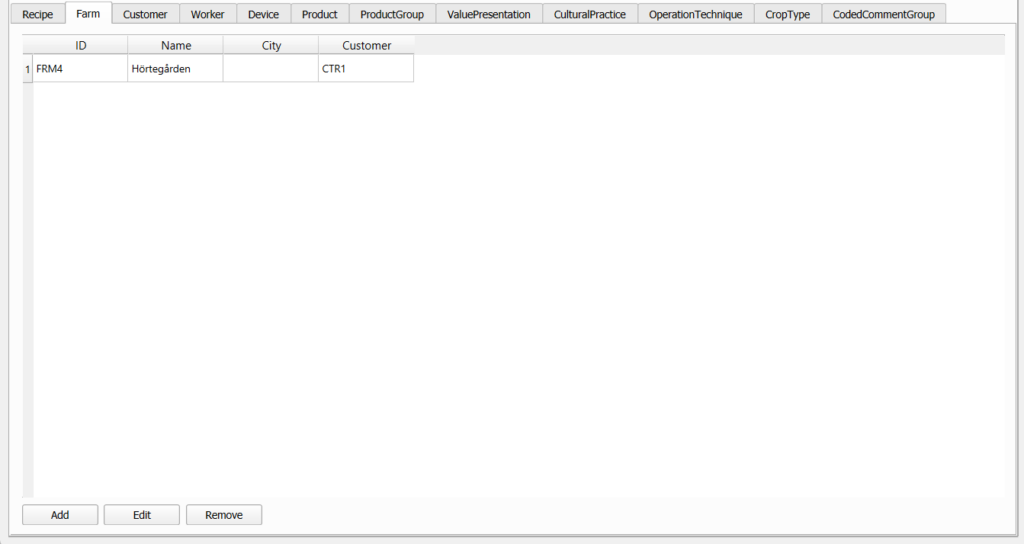
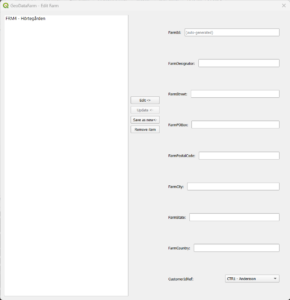
1. Select the appropriate metadata tab (e.g., “Farm”)
2. Click Add to open the metadata editor
3. Fill in the required fields
4. Click Save as new to store the entry
Editing Metadata
1. Select an entry from the table
2. Click Edit to modify
3. Click Update to save changes
Step 3: Configure and Generate
After loading a recipe, the Recipe tab will display input fields for all selected attributes. Fill in the required values:
– Text fields for names and descriptions
– Spin boxes for numeric values
– Dropdowns for selecting metadata references (e.g., which Farm or Worker to assign) and enumerated values
– Field selectors for linking boundaries from your loaded QGIS layers
Once all fields are configured, click Create file and select an output folder. The generator will produce:
– `TASKDATA.XML` – The main ISOXML file
– Binary files (`.bin`) for grid data if applicable
Tips
– Save recipes for reuse – Create templates for common task types
– Keep metadata organized – Set up farms, workers, and devices once, then reference them in multiple tasks
Troubleshooting
Recipe won’t load -> Ensure `.recipe` file is valid XML
Missing metadata options -> Add entries in the corresponding metadata tab